SharePoint Online vs. SharePoint On-Premises: Choosing the Right Deployment Option
Download MarkDown
SharePoint is a versatile platform that enables organizations to collaborate, manage documents, and automate processes. However, when it comes to choosing the right deployment option, organizations often face a dilemma between SharePoint Online and SharePoint On-Premises. Both options have their own advantages and disadvantages, and choosing the right one requires a thorough analysis of business needs and technical requirements. In this blog, we will compare SharePoint Online and SharePoint On-Premises and help you make an informed decision.
SharePoint Online:
SharePoint Online is a cloud-based platform that is part of the Microsoft 365 suite of productivity applications. It offers a wide range of features and capabilities, such as document management, content sharing, team collaboration, and workflow automation. SharePoint Online is accessible from anywhere, on any device, as long as you have an internet connection. It provides automatic updates, security patches, and backups, and eliminates the need for in-house server maintenance and upgrades. SharePoint Online also integrates seamlessly with other Microsoft applications, such as Teams, OneDrive, and Power Automate.
However, SharePoint Online has some limitations that may not be suitable for all organizations. For example, it has a storage limit of 25 TB, which may not be sufficient for large enterprises with extensive data and document management needs. SharePoint Online also has limited customization options, and some features and functionalities may not be available in the cloud version. Additionally, SharePoint Online requires a reliable and stable internet connection to function properly, which may be a challenge for organizations with poor connectivity or limited bandwidth.
SharePoint On-Premises:
SharePoint On-Premises, on the other hand, is a self-hosted platform that is installed and managed on the organization’s own servers. It offers complete control over the infrastructure, customization options, and integration with other on-premises applications. SharePoint On-Premises can handle large amounts of data and documents and is suitable for organizations that require high levels of security, compliance, and governance. It also allows for offline access, which can be critical in situations where internet connectivity is limited or unreliable.
However, SharePoint On-Premises also has some drawbacks that organizations should be aware of. It requires a significant upfront investment in hardware, software, and IT resources, and ongoing maintenance and upgrades can be time-consuming and costly. SharePoint On-Premises also lacks the automatic updates and security patches of SharePoint Online and may require additional measures to ensure data backups, disaster recovery, and business continuity.
Choosing the Right Deployment Option:
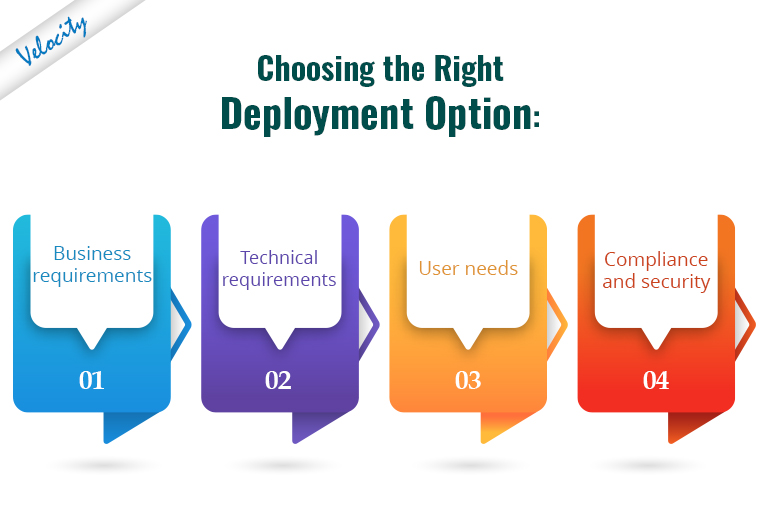
To choose the right deployment option, organizations need to consider several factors, such as:
- Business Requirements: What are the organization’s goals, objectives, and priorities? Which SharePoint features and functionalities are critical to achieving those goals?
- Technical Requirements: What are the organization’s infrastructure, hardware, software, and IT resources? Which deployment option can meet those requirements within the available budget and timeline?
- User Needs: What are the users’ preferences, skills, and expectations? Which deployment option can provide a seamless and user-friendly experience?
- Compliance and Security: What are the organization’s regulatory and compliance requirements? Which deployment option can ensure data privacy, security, and governance?
Conclusion:
In conclusion, choosing the right deployment option for SharePoint requires a careful analysis of the organization’s needs and requirements. SharePoint Online offers flexibility, scalability, and accessibility, but may have some limitations in terms of customization, storage, and connectivity. SharePoint On-Premises offers control, customization, and security, but may require more investment in hardware, software, and IT resources. Ultimately, the choice between SharePoint Online and SharePoint On-Premises depends on the organization’s priorities, preferences, and constraints.
If you have any questions regarding SharePoint deployment options, feel free to contact us at [email protected].
Frequently Asked Questions
What is the main difference between SharePoint Online and SharePoint On-Premises?
The single biggest difference is who runs the infrastructure. SharePoint Online is a Microsoft-hosted SaaS — Microsoft owns the servers, patches them, runs backups, and handles uptime; you access it via a web browser as part of a Microsoft 365 subscription. SharePoint On-Premises (SharePoint Server 2019, Subscription Edition) installs on servers you own and operate inside your own datacenter or private cloud; your IT team handles OS patching, SQL Server maintenance, backups, and disaster recovery. The trade-off: SharePoint Online is cheaper upfront, scales automatically, and gets new features first; SharePoint On-Premises gives you full data sovereignty, deeper customization, and works in air-gapped environments where cloud is not an option.
What’s the difference between SharePoint, SharePoint Online, and SharePoint Server?
“SharePoint” by itself is the brand name for Microsoft’s collaboration platform. SharePoint Online (sometimes called SharePoint in Microsoft 365) is the cloud-hosted version included with Microsoft 365 Business / Enterprise plans. SharePoint Server is the on-premises product — the current versions are SharePoint Server 2019 and SharePoint Server Subscription Edition (released 2021, the successor to perpetual-license versions). Older on-premises versions (SharePoint 2010, 2013, 2016) are out of mainstream support. So in 2026: SharePoint Online vs SharePoint Server is the same question as “Online vs On-Premises.”
What is SharePoint cloud vs on-premise pricing comparison?
SharePoint Online is sold per-user per-month: Plan 1 ($5/user/mo) gives 1 TB cloud storage per user and basic SharePoint; Microsoft 365 Business Standard ($12.50/user/mo) bundles Office apps + SharePoint + Teams + Exchange; Enterprise E3 ($23/user/mo) adds advanced compliance, eDiscovery, Power Apps/Automate. SharePoint Server On-Premises has a one-time license cost (Server CAL + per-user CALs, typically $5k-25k for the server + $100-200/user) plus ongoing infrastructure: Windows Server licenses, SQL Server licenses, hardware, IT staff time, networking, backups. For a 100-user org, SharePoint Online (Business Standard) costs ~$15k/year all-in; SharePoint Server On-Premises typically costs $40-80k year 1 (license + hardware + setup) and $15-25k/year thereafter (maintenance, upgrades). The breakeven usually favors SharePoint Online for orgs under 500 users.
How do I deploy SharePoint Online for my organization?
SharePoint Online deployment is straightforward but worth doing carefully: (1) Purchase Microsoft 365 subscription with SharePoint included (Business Standard or higher). (2) Set up your tenant at admin.microsoft.com — verify your domain, set up DNS records. (3) Define your information architecture before creating sites — hub sites, communication sites, team sites map roughly to “intranet/portal”, “content publishing”, and “departmental collaboration”. (4) Configure governance: site provisioning rules, external sharing policies, retention labels, sensitivity labels. (5) Run a pilot with one team for 2-4 weeks before company-wide rollout. (6) Migrate content from legacy systems (file shares, older SharePoint, Box, Dropbox) using SharePoint Migration Tool (free) or third-party tools like ShareGate or Quest Migration Manager.
Is SharePoint Online the same as Office 365 / Microsoft 365?
No, but it’s bundled with most Microsoft 365 plans. Microsoft 365 (formerly Office 365) is the umbrella subscription that includes Word, Excel, PowerPoint, Outlook, Teams, OneDrive, and SharePoint Online. SharePoint Online is one component of that bundle, specifically for collaborative document storage, intranet sites, and team workspaces. You can buy SharePoint Online as a standalone (Plan 1 or Plan 2) without the rest of Microsoft 365, but most organizations get it bundled. OneDrive (personal file storage) and SharePoint (team/site storage) both run on the same underlying platform but are licensed and configured separately.
Can I migrate from SharePoint On-Premises to SharePoint Online?
Yes. Microsoft provides the SharePoint Migration Tool (SPMT, free) which handles file-share migration and on-premises SharePoint 2013/2016/2019 → SharePoint Online. For larger or more complex migrations (custom workflows, InfoPath forms, custom solutions, SharePoint 2010), third-party tools handle the heavy lifting: ShareGate (best UX), Quest Migration Manager, AvePoint Fly. Expect a multi-phase project: (1) Inventory & assess (1-2 weeks), (2) Remediate incompatible elements (custom code, workflows, InfoPath), (3) Pilot migration of one site (1-2 weeks), (4) Full migration in waves (4-12 weeks for mid-size orgs). Plan for user training — SharePoint Online’s modern experience UI is quite different from classic on-premises.
What are the security differences between SharePoint Online and On-Premises?
Both can be secure, but they shift the responsibility model. SharePoint Online: Microsoft handles infrastructure security, patching, DDoS protection, data-center physical security. You configure access control, conditional access policies, MFA, data loss prevention, and sensitivity labels. The data sits in Microsoft datacenters — compliant with GDPR, HIPAA, SOC 2, ISO 27001 by default, but data residency is constrained to whatever region you chose at tenant creation. SharePoint On-Premises: you own everything — including the responsibility to patch, configure firewalls, monitor logs, manage encryption keys. Better for organizations with strict data sovereignty needs (defense, government, certain financial sectors), but requires a dedicated security team. Most regulated industries (banking, healthcare) can use SharePoint Online with the right compliance plan (E5 + Microsoft Defender for Cloud Apps).