
Getting familiar with Apache Web Server configuration files
Download MarkDown
Apache is a very well known web server which used to serve more than half of all the active websites. In this article, we will explore the general configuration files and options that can be controlled within an Apache web server. Here, we will follow the Ubuntu/Debian structure of Apache files.
Installing Apache on Linux (Ubuntu and Debian)
In case if you have not installed the Apache yet, you can install it now by using the following commands:
sudo apt-get update
sudo apt-get install apache2
Apache File distribution in Ubuntu and Debian
On Linux based systems on Ubuntu and Debian, you can find the main configuration files of Apache within the folder “/etc/apache2” :
Use the following commands to see the file distribution:
- cd /etc/apache2
- ls -F
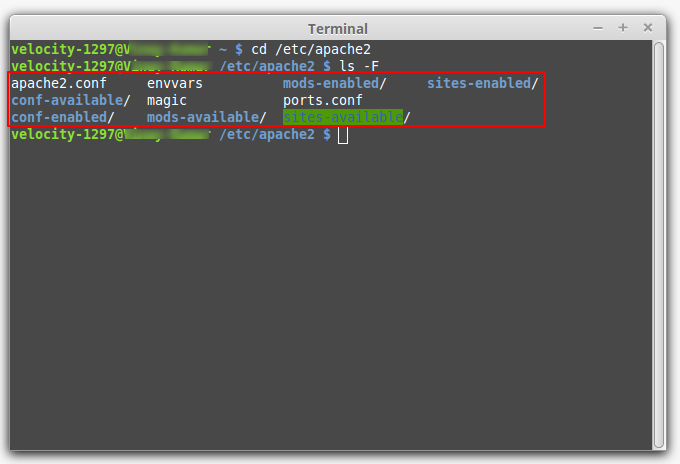
Let’s get familiar with these locations in the directory:
- apache2.conf: This is the main server configuration file. Most of the configurations can be done from this file alone. However, it is recommended to use separate, designated files for simplicity and backup. With this file, you can configure the defaults and it acts as a central point of access for the server that reads the configuration details.
- ports.conf: In this file, you can specify the ports that virtual hosts would listen on. You should take special care to check if this file is correct when you are configuring SSL.
- conf.d/: This directory controls some specific aspects of the Apache configuration. For example, it can also be used to define SSL configuration and default security configurations.
- sites-available/: It contains the greater part of the virtual host files that characterize different sites. It will decide up which content gets served for which request. These are accessible setups, not dynamic configurations.
- sites-enabled/: This directory sets up which virtual host definitions are really being utilized. Ordinarily, it comprises of typical connections to files characterized in the “sites-available”.
- mods-[enabled,available]/: These directories work similarly as the sites directories, but they additionally define modules that can be loaded instead.
The Apache2.conf File
This file can be found in the directory “/etc/apache2/apache2.conf”. It holds the main configuration details for your Apache server. The file is sectioned into three main parts:
- Global Apache server process configuration
- Default server configuration, and
- Virtual Hosts configuration
In Ubuntu and Debian based Linux systems, the most of the file is for global definitions. The default server configuration and virtual hosts can be handled at the end, by using the “Include …” directive. Here, we will focus on the Apache global settings.
Global Configuration Section
You can use this section to configure some options that control the working of Apache works as a whole. There are few useful options that you may want to learn about in this section:
-
Timeout
It defines the maximum time (in seconds) withing which the server has to fulfill a request. By default, it is set to “300”, which means that the server has a maximum of 300 seconds to fulfill each request.
-
KeepAlive
It this option, is set to “On”, it will allow each connection on the server to remain active to handle multiple requests from the same client. Setting it to “Off” will want each request to establish a new connection. Keeping it off will result in unnecessary overhead to the server.
-
MaxKeepAliveRequests
This section controls how many separate requests can be handled by a connection before dying. Keeping its value to a higher number high means the Apache will serve content to each client more effectively. If the value 0, it will allow Apache server to serve a unlimited number of requests for each connection.
-
KeepAliveTimeout
It specifies how long the server will wait for the next request after finishing the last one. If it reaches the timeout threshold, the connection will die. The next time when a content is requested, the server will establish a new connection to server that request.
-
MPM Configuration
This section specifies the MPM (Multi-Processing Module) configuration options. You can check which section your Apache installation was compiled with on your system by visiting into the terminal and typing:
apache2 -l
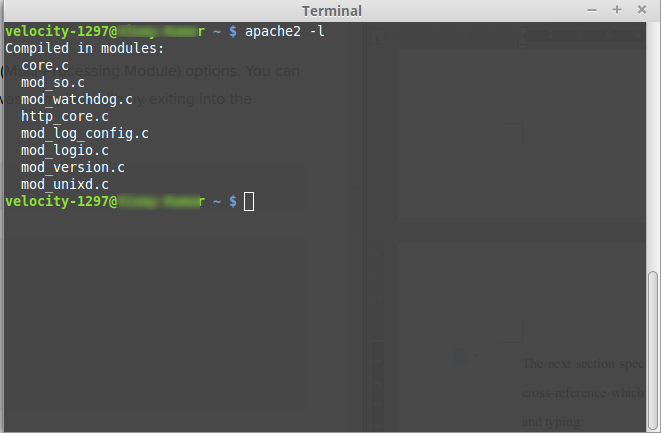
This is how the Apache configuration files are distributed and perform their assigned task. You must always read about all these files and their configuration before attempting any modification. Furthermore, do not forget to take a backup before editing them. You can read more about how to edit a file on Linux from here.
For more command line operations such as zipping or unzipping files on Linux, Installing phpMyAdmin on Linux, you can have a look at our guides.
Frequently Asked Questions
Where is the Apache configuration file located on Ubuntu and other Linux distros?
Apache’s main config file lives in different places depending on your distribution: Ubuntu/Debian: /etc/apache2/apache2.conf (with per-site configs in /etc/apache2/sites-available/ and per-module configs in /etc/apache2/mods-available/). CentOS/RHEL/Fedora/Rocky/AlmaLinux: /etc/httpd/conf/httpd.conf (with per-app overrides in /etc/httpd/conf.d/). macOS (Homebrew): /usr/local/etc/httpd/httpd.conf (Intel Mac) or /opt/homebrew/etc/httpd/httpd.conf (Apple Silicon). Windows (XAMPP): C:\xampp\apache\conf\httpd.conf. To find it on any system, run apache2 -V 2>&1 | grep SERVER_CONFIG_FILE (Debian) or httpd -V 2>&1 | grep SERVER_CONFIG_FILE (RHEL).
What’s the difference between apache2.conf, httpd.conf, and .htaccess?
They’re all Apache configuration files but operate at different scopes. apache2.conf / httpd.conf is the master config — loaded once at server startup, applies globally to all sites, requires a server restart or reload to take effect. Virtual-host configs (in sites-available/ or conf.d/) override the master per-site. .htaccess lives inside the document root, can be edited per-directory by application code, takes effect immediately (no restart needed) but slows Apache down because every request triggers a recursive lookup. Rule of thumb: put as much as possible in apache2.conf or vhost configs, use .htaccess only when application code (WordPress, Laravel) needs to ship its own rewrite rules.
What are Apache’s minimum server requirements?
Apache itself is lightweight — it runs comfortably on 256 MB RAM and a single CPU core for low-traffic sites. Real-world recommendations: (1) small static site: 1 GB RAM, 1 vCPU, 10 GB SSD. (2) WordPress / PHP site at ~10k pageviews/day: 2 GB RAM, 2 vCPUs, 30 GB SSD. (3) Busy ecommerce or app backend: 4-8 GB RAM, 4 vCPUs, NVMe disk for database, Redis or Memcached for object caching. Beyond a single server, Apache scales horizontally behind a load balancer (HAProxy, nginx, AWS ALB). The OS-level limits matter too: tune ulimit -n (open files) and TCP buffers on busy servers.
What is the apache directory configuration and how do Directory directives work?
Apache’s <Directory> directive lets you apply settings to specific filesystem paths inside the main config or virtual-host file. Example: <Directory "/var/www/html"> AllowOverride All Require all granted </Directory> grants public access and allows .htaccess overrides for that path. Common directives inside a <Directory> block: AllowOverride (which .htaccess directives are honored — All, None, AuthConfig, FileInfo), Options (Indexes, FollowSymLinks, ExecCGI, MultiViews), Require (access control — Require all granted / Require ip 192.168.0.0/16 / Require valid-user). Always set AllowOverride None in production unless you specifically need .htaccess support — it’s a measurable performance win.
How do I view the default Apache configuration?
To dump the running config (with all included files resolved): apachectl -S shows your vhost layout, apachectl -M lists all loaded modules, and apachectl -t -D DUMP_CONFIG (Apache 2.4.34+) prints the entire effective configuration. On Debian/Ubuntu use apache2ctl instead of apachectl. To see only the differences from default, compare against the package’s original config: diff /etc/apache2/apache2.conf /usr/share/apache2/apache2.conf.dpkg-dist (Debian) or rpm -q --configfiles httpd followed by diff (RHEL).
What’s the difference between Apache and Apache HTTP Server vs apache2 vs httpd?
They’re all the same software with different names depending on your packaging. “Apache HTTP Server” is the official project name from the Apache Software Foundation. “Apache” is the colloquial short form. apache2 is the binary name on Debian/Ubuntu (where the package is also called apache2). httpd is the binary name on RHEL/CentOS/Fedora (where the package is called httpd). Same source code, same config format, just different file paths. The Apache Software Foundation also ships other products like Apache Tomcat (Java servlet container) and Apache Cassandra (NoSQL database) — confusingly, none of those have anything to do with Apache HTTP Server.
What are the most common Apache configuration mistakes?
The top 5 we see most often: (1) AllowOverride All set globally in production — kills performance because every request walks the directory tree looking for .htaccess. (2) Forgetting to disable Options Indexes — lets visitors browse directory listings, exposing files you didn’t mean to publish. (3) Running Apache as root or as the same user as the application — should run as www-data (Debian) or apache (RHEL) with proper file ownership. (4) Leaving ServerSignature On and ServerTokens Full — leaks Apache version and OS in error pages and HTTP headers, helps attackers. Set ServerSignature Off and ServerTokens Prod. (5) Not enabling mod_security or a WAF — Apache is internet-facing and brute-force attacks against /wp-login.php, /xmlrpc.php, /admin are constant; a basic WAF rule set blocks 80% of automated scans.