
Learn how to install WordPress on Ubuntu 24.04 using Apache, MySQL, and PHP.
Download MarkDown
What is WordPress?
WordPress is a powerful open-source Content Management System (CMS) that allows users to build and manage websites without complex coding.
It powers over 40% of websites globally, making it the most popular website platform in the world.
WordPress is used for:
- Business websites
- Blogs
- E-commerce stores
- News portals
- Portfolio websites
Why Use WordPress for Your Website?
1. Easy Website Development Without Coding
Problem:
Building a website from scratch requires knowledge of:
- HTML
- CSS
- JavaScript
- PHP
- Database configuration
Solution:
WordPress provides:
- Ready-made admin dashboard
- Theme customization
- Built-in database structure
- Plugin-based functionality
This significantly reduces development time and cost.
2. Easy Content Management
Problem:
Non-technical users struggle to update website content.
Solution:
WordPress provides a simple dashboard where users can:
- Create pages
- Publish blog posts
- Upload images
- Manage categories
- Edit content anytime
No developer required for daily updates.
Extend Website Functionality with Plugins
Problem:
Custom feature development takes time and money.
Solution:
WordPress has thousands of plugins for:
- E-commerce → WooCommerce
- Security → Wordfence
- Caching & Speed → WP Super Cache
- Contact Forms
- Payment Gateways
- Membership Systems
Install and activate — no coding required.
What Problems Does WordPress Solve?
| Business Problem | WordPress Solution |
|---|---|
| High website development cost | Free open-source platform |
| Difficult content updates | User-friendly dashboard |
| Poor SEO ranking | Built-in SEO features |
| Slow deployment | Ready-made themes |
| Security concerns | Security plugins & updates |
| Scaling issues | Plugin & hosting scalability |
Introduction
If you want to deploy a secure and SEO-friendly website, installing WordPress on Ubuntu Server is one of the best solutions.
This guide will help you set up:
- Ubuntu Server (20.04 / 22.04)
- Apache Web Server
- MySQL Database
- PHP
- SEO-friendly configuration
Prerequisites
Before installing WordPress on Ubuntu, make sure:
- Ubuntu Server installed
- Sudo/root access available
- Domain pointed to your server IP
- Ports 80 and 443 are open in the firewall
Update your server:
sudo apt update u0026u0026 sudo apt upgrade -y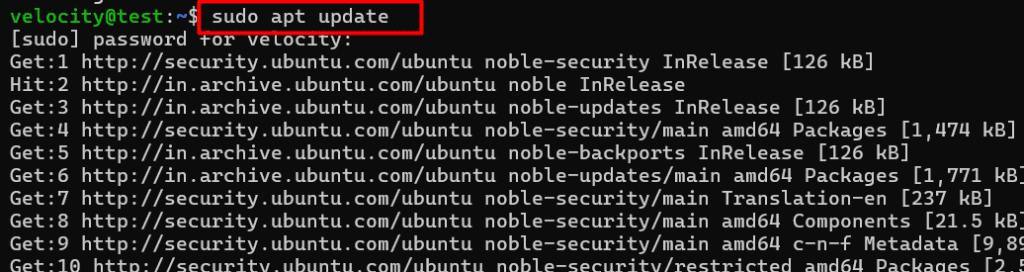
Step 1: Install Apache Web Server
Install Apache:
sudo apt install apache2 -y
sudo systemctl enable apache2nsudo systemctl start apache2
Verify Apache status:
sudo systemctl status apache2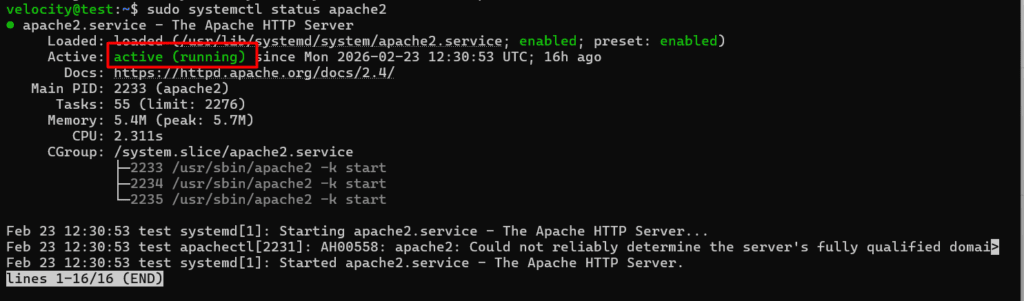
Step 2: Install MySQL Server
Install MySQL:
sudo apt install mysql-server -y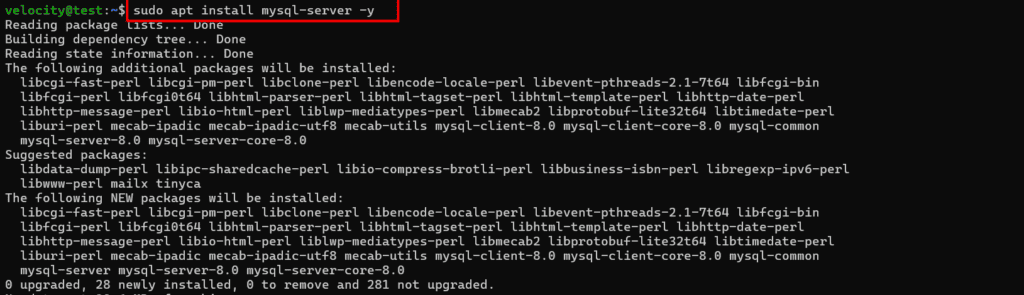
Secure MySQL:
sudo mysql_secure_installation
Log in to MySQL:
sudo mysql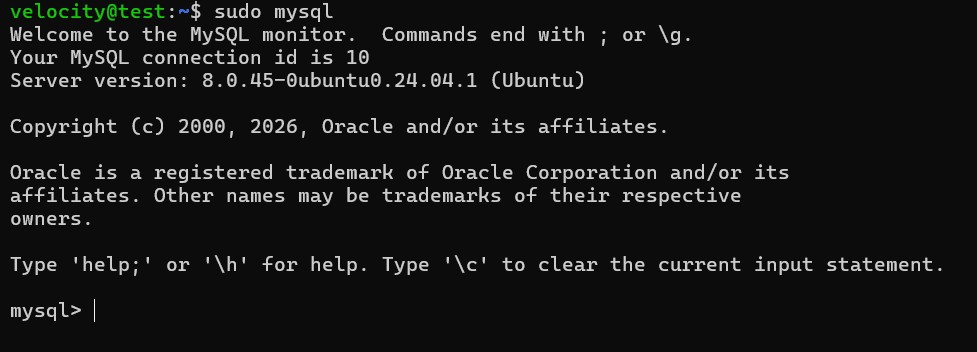
Create database and user:
CREATE DATABASE wordpress;nCREATE USER 'wpuser'@'localhost' IDENTIFIED BY 'StrongPassword';nGRANT ALL PRIVILEGES ON wordpress.* TO 'wpuser'@'localhost';nFLUSH PRIVILEGES;nEXIT;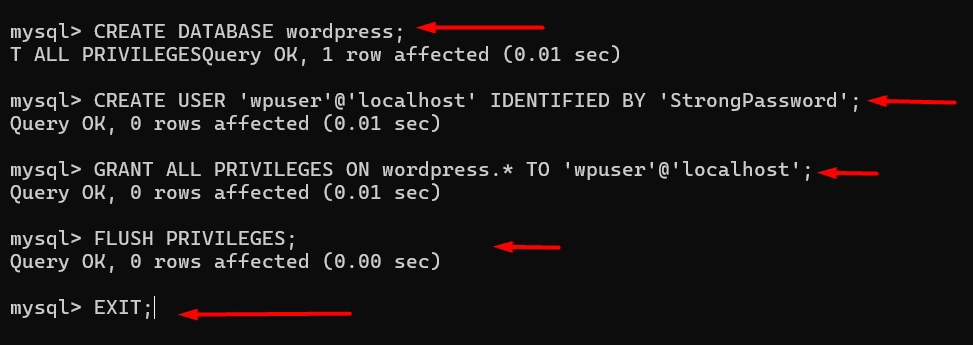
Step 3: Install PHP and Required Extensions
Install PHP with required modules:
sudo apt install php libapache2-mod-php php-mysql php-curl php-gd php-xml php-mbstring php-zip -y
Restart Apache:
sudo systemctl restart apache2Check PHP version:
php -v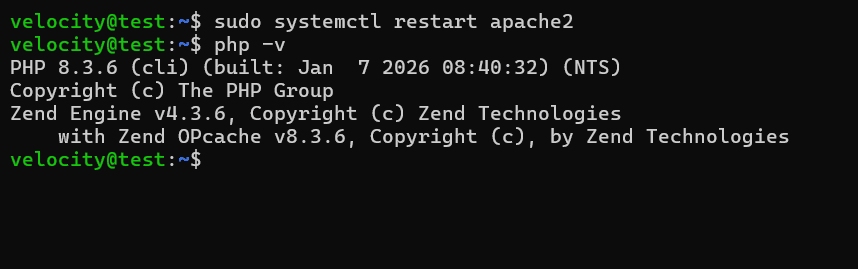
Step 4: Download WordPress
Move to web directory:
cd /var/www/Download the latest WordPress:
sudo wget https://wordpress.org/latest.tar.gz
Extract:
sudo tar -xvzf latest.tar.gz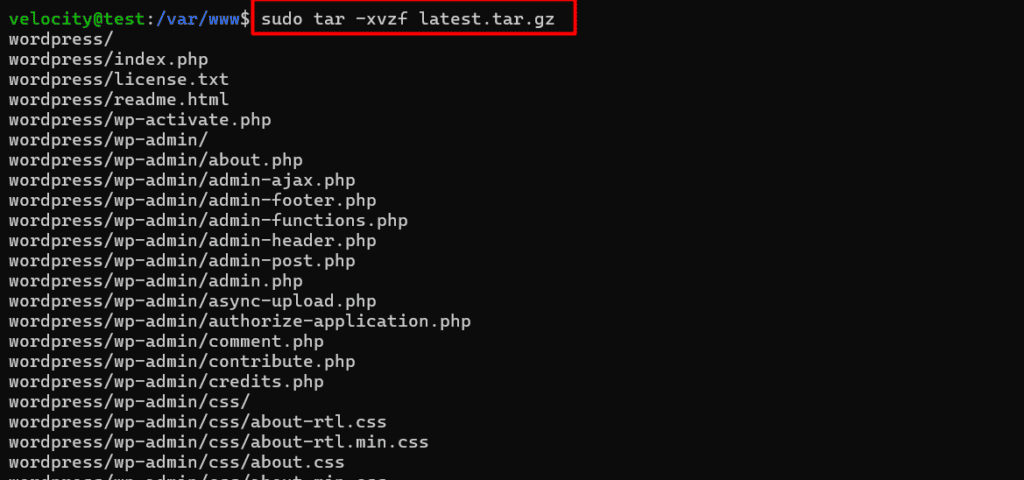
Set correct permissions:
sudo chown -R www-data:www-data wordpress
sudo chmod -R 755 wordpress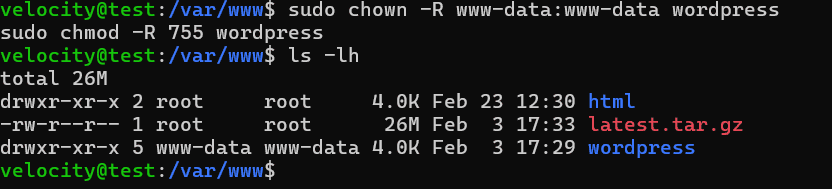
Step 5: Configure Apache Virtual Host
Create a new configuration file:
sudo nano /etc/apache2/sites-available/yourdomain.confAdd:
u003cVirtualHost *:80u003en ServerName yourdomain.comn ServerAlias www.yourdomain.comn DocumentRoot /var/www/wordpress nn u003cDirectory /var/www/wordpressu003en AllowOverride Alln Require all grantedn u003c/Directoryu003enn ErrorLog ${APACHE_LOG_DIR}/wordpress_error.logn CustomLog ${APACHE_LOG_DIR}/wordpress_access.log combinednu003c/VirtualHostu003eEnable site and rewrite module:
sudo a2ensite yourdomain.conf
sudo a2enmod rewrite
sudo systemctl reload apache2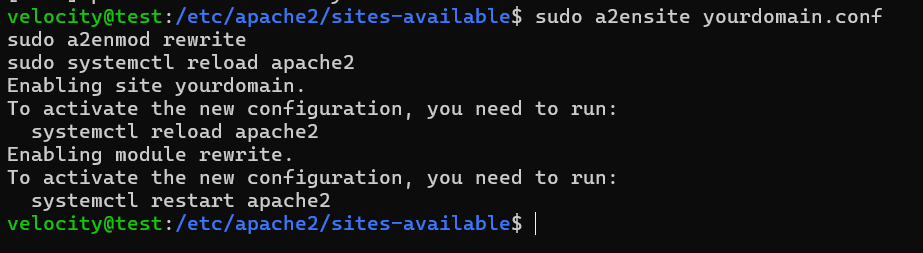
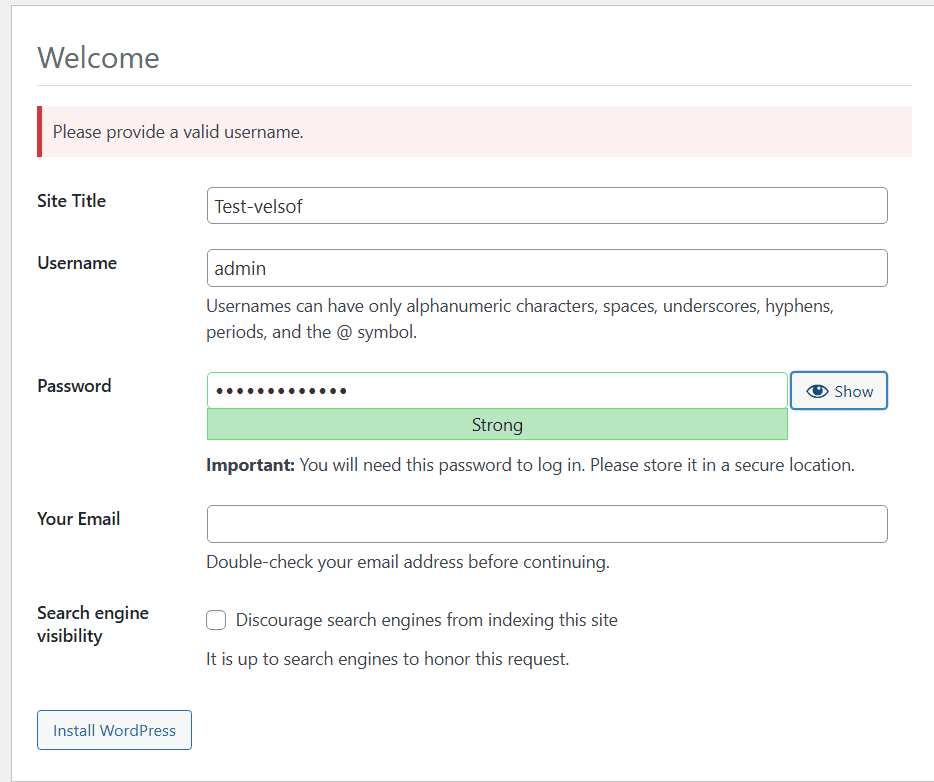
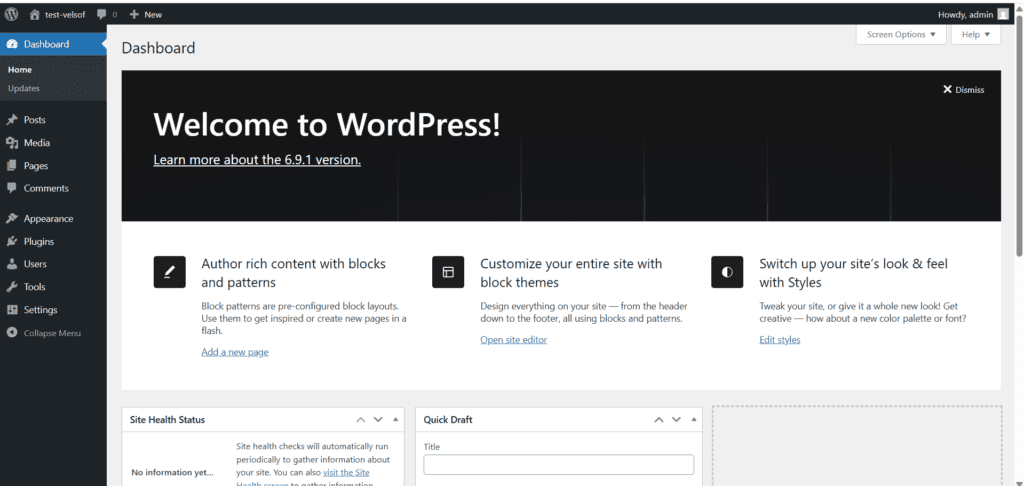
Step 6: Complete WordPress Installation
Open:
http://yourdomain.com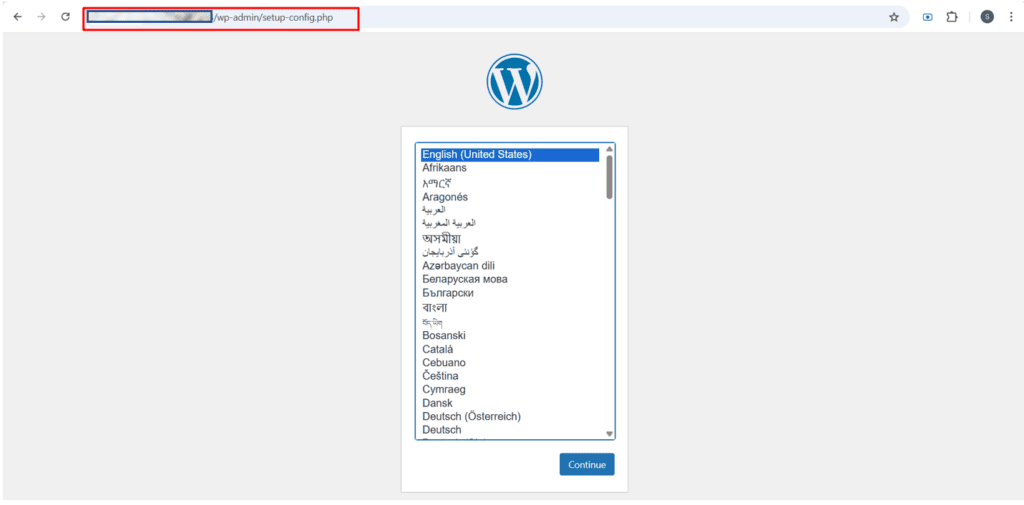
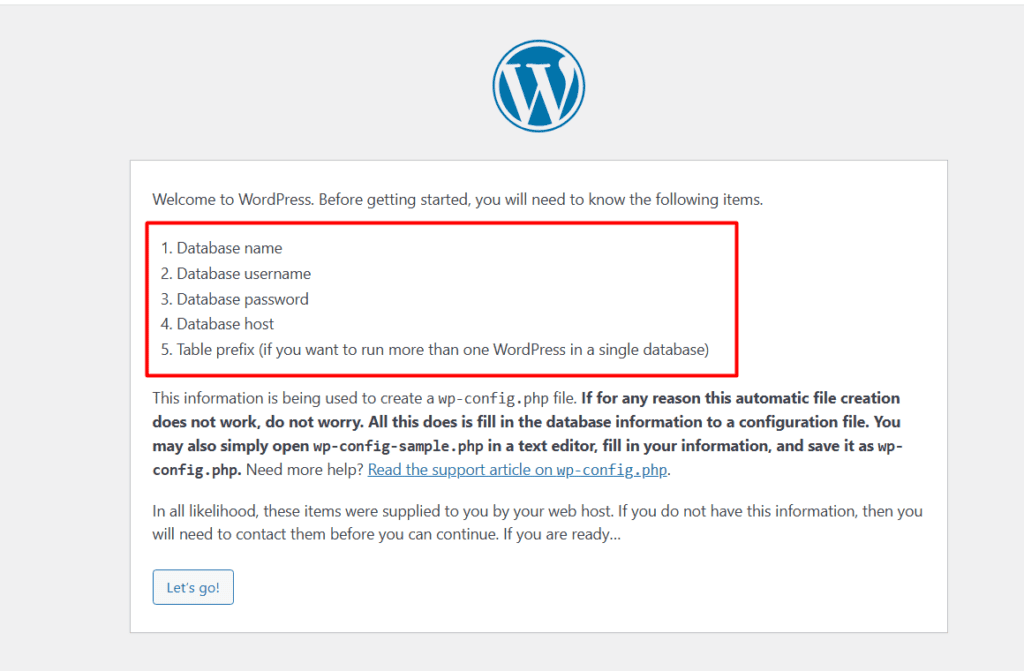
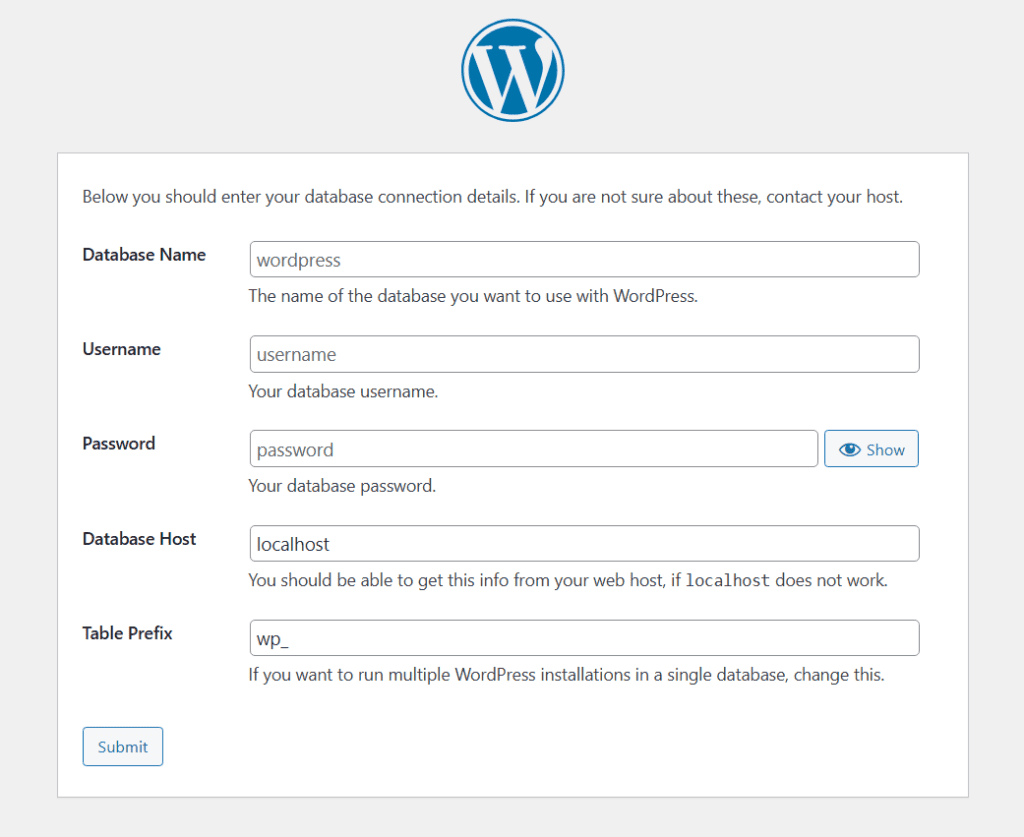
Enter database details:
- Database Name:
- Username:
- Password:
- Database Host:
Click Install WordPress.
Issues and Troubleshooting Guide
During the installation or operation of WordPress on Ubuntu Server, some common issues may occur. Below are standard problems and their solutions.
1️⃣ Website Not Loading (Apache Not Running)
Issue:
The website does not open in the browser.
Possible Cause:
Apache service is stopped.
Solution:
Check Apache status:
sudo systemctl status apache22️⃣ Database Connection Error
Issue:
“Error Establishing a Database Connection”
Possible Causes:
- Wrong database name
- Incorrect username/password
- MySQL service is not running
Solution:
Check MySQL status:
sudo systemctl status mysqlsudo systemctl restart mysqlVerify database credentials inside:
/var/www/wordpress/wp-config.php3️⃣ 500 Internal Server Error
Issue:
Server shows 500 error.
Possible Causes:
- Incorrect file permissions
- .htaccess issue
- mod_rewrite not enabled
Solution:
Enable rewrite module:
sudo a2enmod rewrite
sudo systemctl restart apache2
Fix permissions:
sudo chown -R www-data:www-data /var/www/wordpress
sudo chmod -R 755 /var/www/wordpress
Check Apache logs:
sudo tail -f /var/log/apache2/error.log4️⃣ CSS or JS Not Loading Properly
Issue:
Website design appears broken.
Possible Causes:
- Incorrect DocumentRoot
- Permission issues
- Mixed HTTP/HTTPS content
Solution:
- Verify Apache virtual host configuration
- Ensure SSL redirect is correct
- Clear browser cache
5️⃣Permission Denied Errors
Issue:
Unable to upload themes/plugins.
Solution:
Set correct ownership:
sudo chown -R www-data:www-data /var/www/wordpressConclusion
In this user manual, we have completed the installation and configuration of WordPress on an Ubuntu Server environment.
The setup included:
- Apache Web Server configuration
- MySQL database setup
- PHP installation and required extensions
- WordPress deployment
With this configuration, the website is now:
✔ SEO-ready
✔ Scalable and production-ready
✔ Easy to manage via WordPress dashboard
This deployment ensures a stable, high-performance, and cost-effective website solution suitable for business, blogging, or e-commerce purposes.
For long-term performance and security, it is recommended to:
- Keep Ubuntu packages updated
- Regularly update WordPress themes and plugins
- Monitor server logs
- Perform periodic backups
- Use security and caching plugins
By following this guide, administrators can efficiently deploy and manage a WordPress website on Ubuntu Server with confidence.