

Proxmox VE Installation Guide on Debian 12 (Bookworm) – Step-by-Step Tutorial (2026)
DOC Download MarkDown- Introduction
- Why Use Proxmox VE?
- Problems Proxmox VE Solves:
- Summary
- Why Install Proxmox VE on Debian 12?
- System Requirements
- Step 1: Verify Debian Version
- Step 2: Update the System
- Step 3: Configure Hostname and Hosts File
- Step 4: Add Proxmox VE Repository (Bookworm)
- Step 6: Remove Default Debian Kernel
- Step 7: Reboot the Server
- Step 8: Access Proxmox Web Interface
- Troubleshooting Guide
- Issue 1: Proxmox Web Interface Not Opening
- Conclusion
Platform: Debian 12 (Bookworm)
Virtualization Platform: Proxmox Virtual Environment
Introduction
If you’re planning to build a powerful virtualization server using Debian 12, this step-by-step guide will help you install Proxmox VE on Debian 12 (Bookworm) the correct and recommended way.
Proxmox Virtual Environment (Proxmox VE) is an open-source enterprise virtualization platform that allows you to run KVM virtual machines, LXC containers, manage storage, networking, clustering, and backups — all from a web-based interface.
Why Use Proxmox VE?
Before diving into installation, it’s important to understand why organizations use Proxmox Virtual Environment and what real-world problems it solves.
In traditional IT environments, every application requires a separate physical server. This leads to:
- High hardware costs
- Poor resource utilization
- Increased power consumption
- Complex maintenance
- Difficult backup and disaster recovery
- Limited scalability
Proxmox VE solves these problems by providing a centralized virtualization platform that allows you to run multiple Virtual Machines (VMs) and Linux Containers (LXC) on a single physical server.
Problems Proxmox VE Solves:
1️⃣ Server Consolidation
Instead of running:
- One server for web hosting
- One for the database
- One for backup
- One for testing
You can run all of them as isolated VMs on a single physical machine.
✅ Reduces hardware cost
✅ Saves rack space
✅ Lowers electricity usage
2️⃣ Better Resource Utilization
Most physical servers use only 20–30% of their capacity. Proxmox allows:
- Dynamic CPU allocation
- RAM optimization
- Storage pooling
- Resource balancing
This ensures maximum hardware efficiency.
3️⃣ Centralized Management
With Proxmox VE’s web interface (port 8006), you can:
- Create and manage VMs
- Monitor CPU, RAM, Disk usage
- Configure networking
- Manage storage
- Take backups
- Create clusters
All from a single dashboard
4️⃣ Built-in High Availability & Clustering
Proxmox supports clustering multiple servers. If one node fails:
- VMs can automatically migrate
- Downtime is minimized
- Infrastructure becomes fault-tolerant
This is ideal for production environments.
5️⃣ Integrated Backup & Snapshot System
Proxmox provides:
- VM snapshots
- Scheduled backups
- Easy restore options
This simplifies disaster recovery planning.
6️⃣ Cost-Effective Alternatives to VMware
Many organizations switch from:
- VMware ESXi
- Microsoft Hyper-V
Because Proxmox:
- Is open-source
- Has no expensive licensing
- Offers enterprise features
- Supports both KVM and LXC
Summary
Proxmox VE solves the core infrastructure challenges of:
- Hardware overuse
- Server sprawl
- Poor resource management
- Expensive virtualization licenses
- Complicated backup systems
It provides a powerful, centralized, enterprise-grade virtualization platform — completely open-source and highly scalable.
Why Install Proxmox VE on Debian 12?
Installing Proxmox VE on Debian 12 (Bookworm) gives you:
- Better control over system configuration
- Minimal OS footprint
- Flexibility for cloud/VPS deployments
- Clean production-ready virtualization setup
- Ideal environment for hosting VMs, Docker hosts, Kubernetes labs, or internal infrastructure
System Requirements
Before installing Proxmox VE, ensure your server meets the following requirements:
Minimum Requirements
- Operating System: Debian 12 (Bookworm) Minimal Installation
- RAM: 4 GB minimum (8 GB recommended for production)
- CPU: 64-bit processor with virtualization support (Intel VT-x / AMD-V)
- Disk Space: Minimum 32 GB
- Network: Static Public IP Address
- Root Access: Required
Step-by-Step Proxmox VE Installation on Debian 12:
Step 1: Verify Debian Version
Ensure the system is running Debian 12 (Bookworm):
cat /etc/os-releaseYou should see:
VERSION="12 (bookworm)"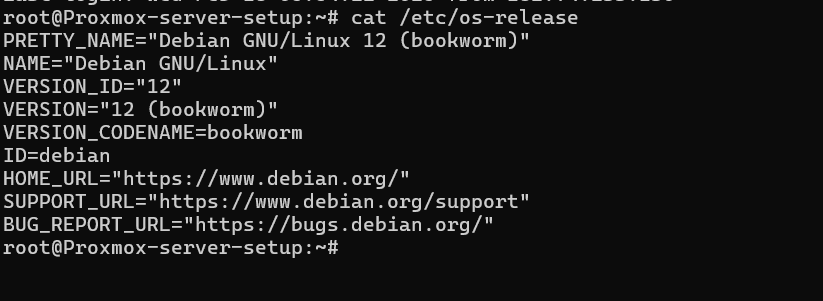
Step 2: Update the System
Update all packages before proceeding:
apt update
apt full-upgrade -y
reboot
Step 3: Configure Hostname and Hosts File
Set Hostname
hostnamectl set-hostname proxmox-server-setupEdit Hosts File
nano /etc/hostsAdd the following lines:
127.0.0.1 localhost
YOUR_SERVER_IP 'Hostname'
Replace YOUR_SERVER_IP with your actual public IP address.
Step 4: Add Proxmox VE Repository (Bookworm)
Add the no-subscription repository:
echo "deb http://download.proxmox.com/debian/pve bookworm pve-no-subscription" > /etc/apt/sources.list.d/pve-install-repo.listAdd GPG key:
Update package list:
wget https://enterprise.proxmox.com/debian/proxmox-release-bookworm.gpg -O /etc/apt/trusted.gpg.d/proxmox-release-bookworm.gpg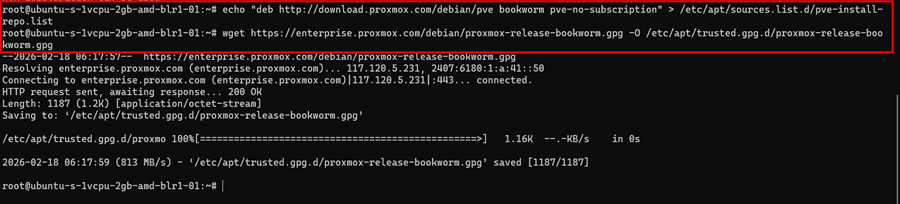
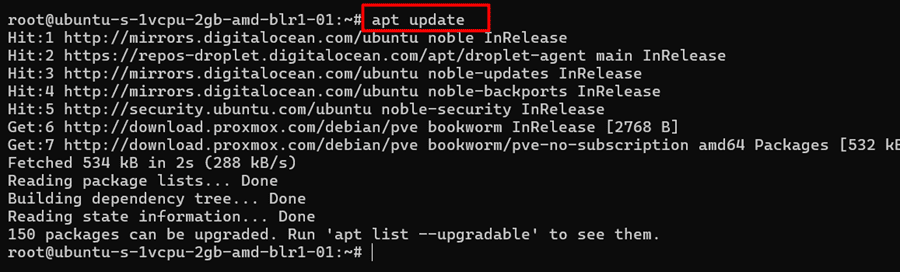
Update package list:
apt update
Step 5: Install Proxmox VE
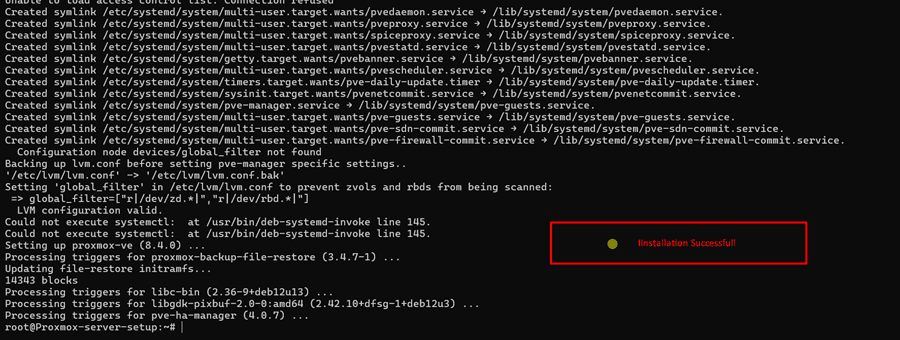
Install Proxmox VE and required packages:
apt install proxmox-ve postfix open-iscsi -yThis will install:
- Proxmox Kernel
- KVM hypervisor
- LXC container support
- Web management interface
- Storage tools
Step 6: Remove Default Debian Kernel
After installation, remove the default Debian kernel to avoid conflicts:
apt remove linux-image-amd64 -y
update-grub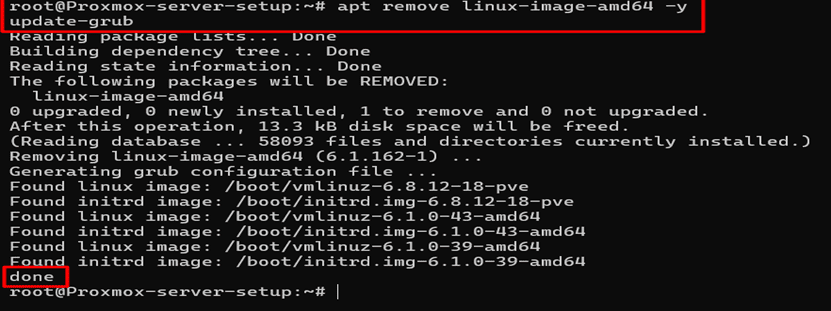
Step 7: Reboot the Server
rebootAfter reboot, your server will be running the Proxmox kernel.
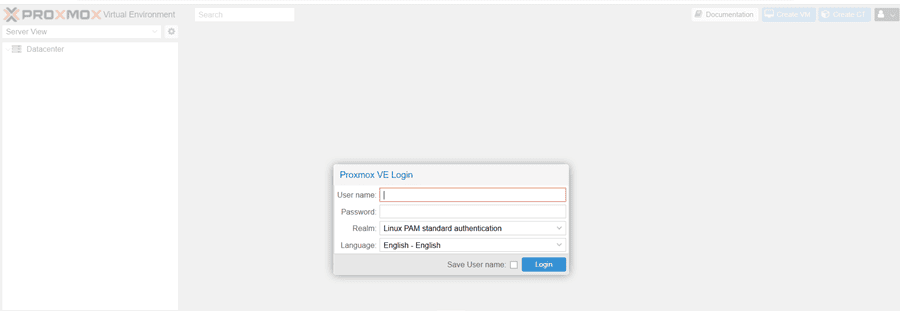
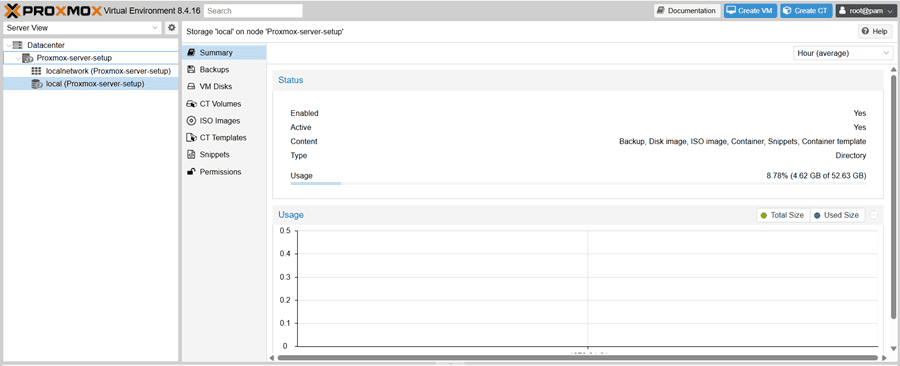
Step 8: Access Proxmox Web Interface
Open your browser and visit:
https://YOUR_SERVER_IP:8006Login credentials:
- Username: root
- Realm: Linux PAM
- Password: Root password
Troubleshooting Guide
Issue 1: Proxmox Web Interface Not Opening
Check pveproxy Service
systemctl status pveproxyIf not running:
systemctl restart pveproxyCheck Firewall
Ensure port 8006 TCP is allowed.
If using cloud providers like:
- DigitalOcean
- AWS
- Azure
Make sure inbound TCP 8006 is allowed in security groups/firewall rules.
Conclusion
Installing Proxmox Virtual Environment on Debian 12 (Bookworm) is a powerful and flexible way to build your own virtualization server.
By following this step-by-step guide, you now have:
- A fully working Proxmox VE server
- Web-based management interface
- Production-ready virtualization environment
You can now start creating Virtual Machines (VMs), LXC containers, and build your own infrastructure.