---
title: "Learn how to install WordPress on Ubuntu 24.04 using Apache, MySQL, and PHP."
url: https://www.velsof.com/devops/learn-how-to-install-wordpress-on-ubuntu-24-04-using-apache-mysql-and-php/
date: 2026-02-24
type: blog_post
author: Sarvendra Singh
categories: DevOps, User Manuals
---
## What is WordPress?
WordPress is a powerful open-source Content Management System (CMS) that allows users to build and manage websites without complex coding.
It powers over 40% of websites globally, making it the most popular website platform in the world.
WordPress is used for:
- Business websites
- Blogs
- E-commerce stores
- News portals
- Portfolio websites
## Why Use WordPress for Your Website?
### 1. Easy Website Development Without Coding
### Problem:
Building a website from scratch requires knowledge of:
- HTML
- CSS
- JavaScript
- PHP
- Database configuration
### Solution:
WordPress provides:
- Ready-made admin dashboard
- Theme customization
- Built-in database structure
- Plugin-based functionality
This significantly reduces development time and cost.
## 2. Easy Content Management
### Problem:
Non-technical users struggle to update website content.
### Solution:
WordPress provides a simple dashboard where users can:
- Create pages
- Publish blog posts
- Upload images
- Manage categories
- Edit content anytime
No developer required for daily updates.
## Extend Website Functionality with Plugins
### Problem:
Custom feature development takes time and money.
### Solution:
WordPress has thousands of plugins for:
- E-commerce → [WooCommerce](https://www.velsof.com/woocommerce-development/)
- Security → Wordfence
- Caching & Speed → WP Super Cache
- Contact Forms
- Payment Gateways
- Membership Systems
Install and activate — no coding required.
## What Problems Does WordPress Solve?
| Business Problem | WordPress Solution |
| --- | --- |
| High [website development](https://www.velsof.com/web-development/) cost | Free open-source platform |
| Difficult content updates | User-friendly dashboard |
| Poor SEO ranking | Built-in SEO features |
| Slow deployment | Ready-made themes |
| Security concerns | Security plugins & updates |
| Scaling issues | Plugin & hosting scalability |
## Introduction
If you want to deploy a secure and SEO-friendly website, installing WordPress on Ubuntu Server is one of the best solutions.
This guide will help you set up:
- Ubuntu Server (20.04 / 22.04)
- Apache Web Server
- MySQL Database
- PHP
- SEO-friendly configuration
## Prerequisites
Before installing WordPress on Ubuntu, make sure:
- Ubuntu Server installed
- Sudo/root access available
- Domain pointed to your server IP
- Ports 80 and 443 are open in the firewall
Update your server:
Bash
```
sudo apt update u0026u0026 sudo apt upgrade -y
```
Powered by Self-hosted OllamaAI Explanation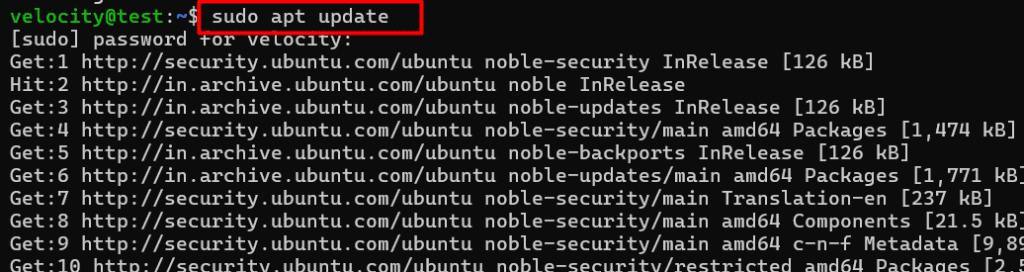
## Step 1: Install Apache Web Server
Install Apache:
Bash
```
sudo apt install apache2 -y
```
Powered by Self-hosted OllamaAI ExplanationBash
```
sudo systemctl enable apache2nsudo systemctl start apache2
```
Powered by Self-hosted OllamaAI Explanation
Verify Apache status:
Bash
```
sudo systemctl status apache2
```
Powered by Self-hosted OllamaAI Explanation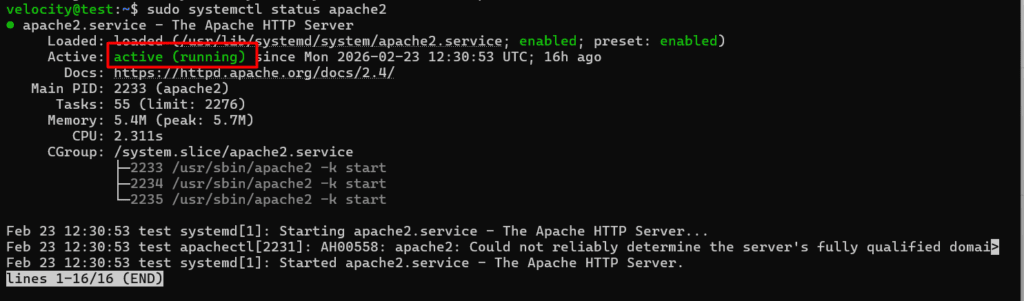
## Step 2: Install MySQL Server
Install MySQL:
Bash
```
sudo apt install mysql-server -y
```
Powered by Self-hosted OllamaAI Explanation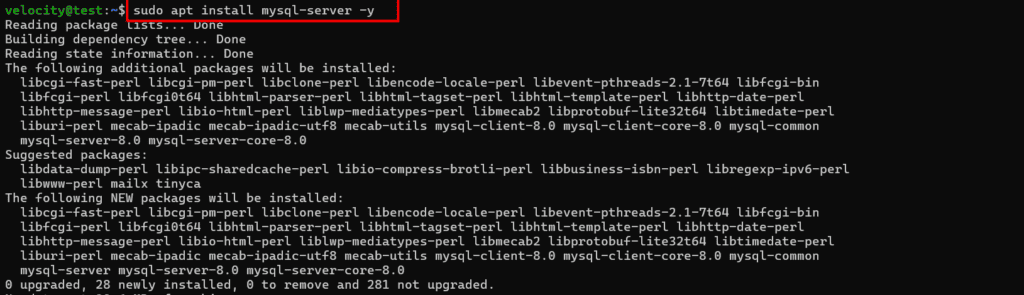
Secure MySQL:
Bash
```
sudo mysql_secure_installation
```
Powered by Self-hosted OllamaAI Explanation
Log in to MySQL:
Bash
```
sudo mysql
```
Powered by Self-hosted OllamaAI Explanation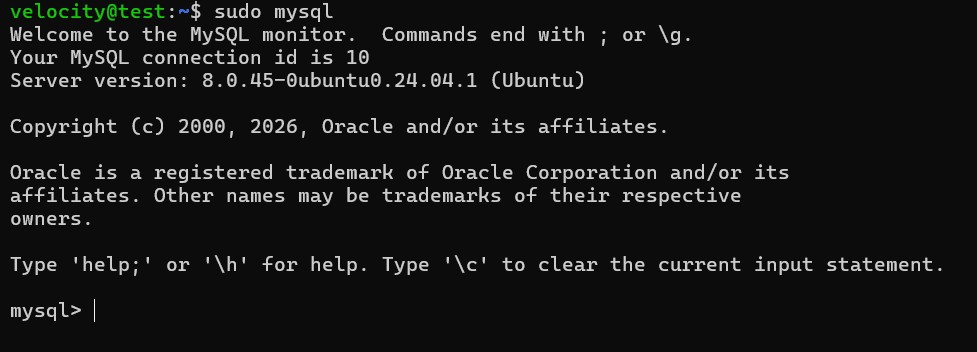
Create database and user:
SQL
```
CREATE DATABASE wordpress;nCREATE USER 'wpuser'@'localhost' IDENTIFIED BY 'StrongPassword';nGRANT ALL PRIVILEGES ON wordpress.* TO 'wpuser'@'localhost';nFLUSH PRIVILEGES;nEXIT;
```
Powered by Self-hosted OllamaAI Explanation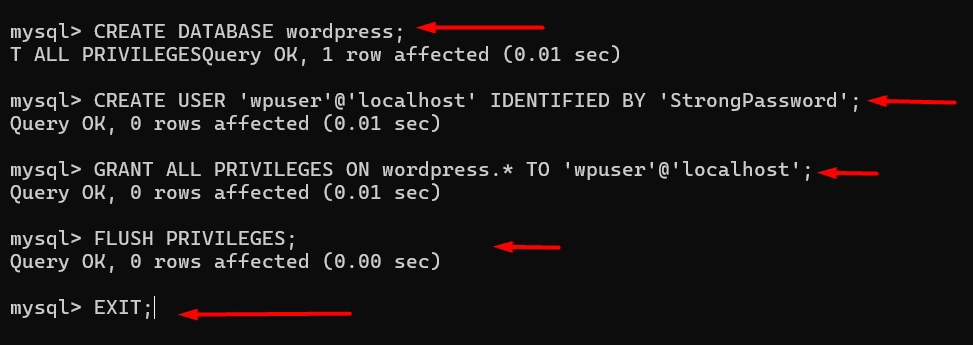
## Step 3: Install PHP and Required Extensions
Install PHP with required modules:
Bash
```
sudo apt install php libapache2-mod-php php-mysql php-curl php-gd php-xml php-mbstring php-zip -y
```
Powered by Self-hosted OllamaAI Explanation
Restart Apache:
Bash
```
sudo systemctl restart apache2
```
Powered by Self-hosted OllamaAI Explanation
Check PHP version:
Bash
```
php -v
```
Powered by Self-hosted OllamaAI Explanation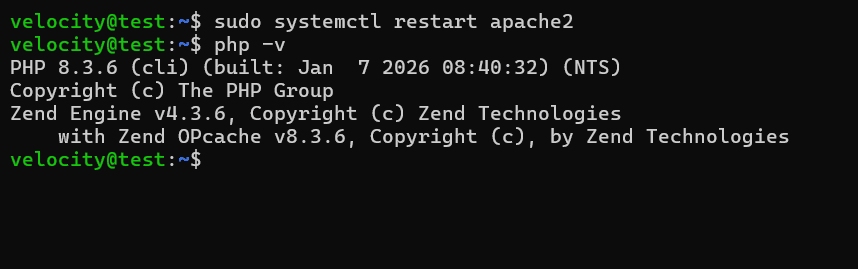
## Step 4: Download WordPress
Move to web directory:
```
cd /var/www/
```
Download the latest WordPress:
```
sudo wget https://wordpress.org/latest.tar.gz
```

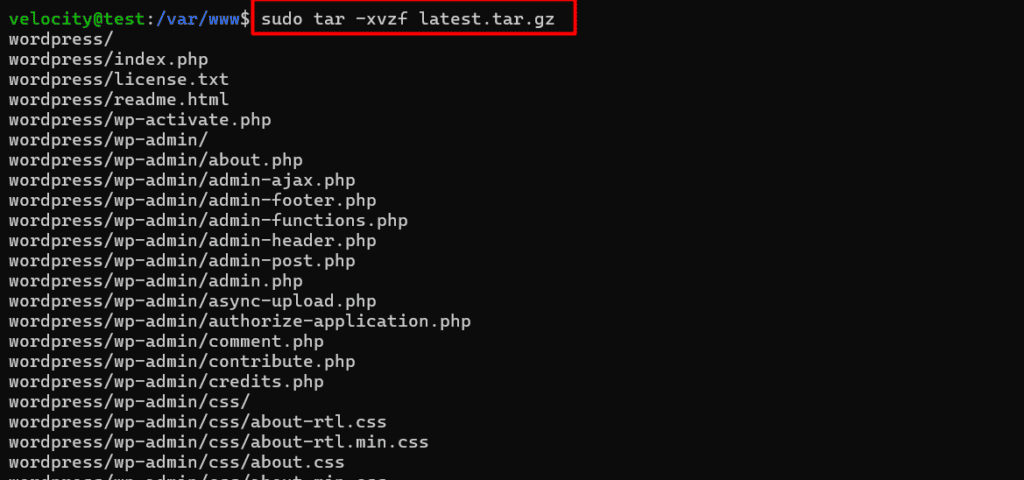
Extract:
```
sudo tar -xvzf latest.tar.gz
```
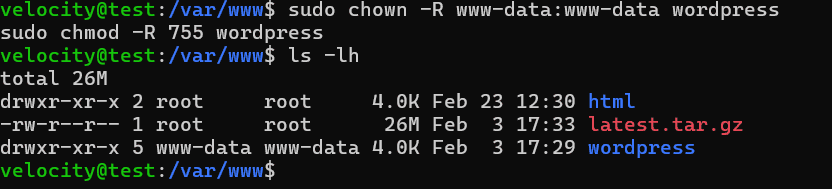
Set correct permissions:
```
sudo chown -R www-data:www-data wordpress
sudo chmod -R 755 wordpress
```
## Step 5: Configure Apache Virtual Host
Create a new configuration file:
```
sudo nano /etc/apache2/sites-available/yourdomain.conf
```
Add:
Apache
```
u003cVirtualHost *:80u003en ServerName yourdomain.comn ServerAlias www.yourdomain.comn DocumentRoot /var/www/wordpress nn u003cDirectory /var/www/wordpressu003en AllowOverride Alln Require all grantedn u003c/Directoryu003enn ErrorLog ${APACHE_LOG_DIR}/wordpress_error.logn CustomLog ${APACHE_LOG_DIR}/wordpress_access.log combinednu003c/VirtualHostu003e
```
Powered by Self-hosted OllamaAI Explanation
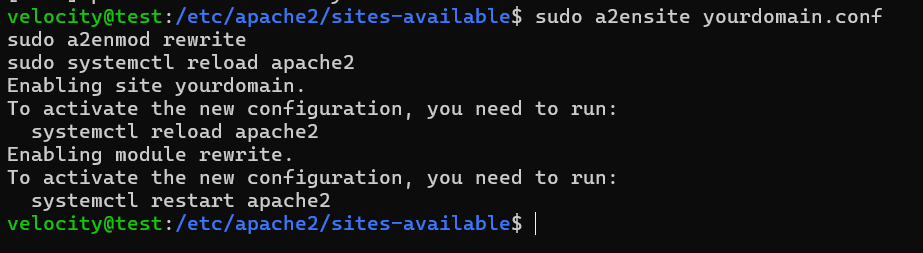
Enable site and rewrite module:
```
sudo a2ensite yourdomain.conf
sudo a2enmod rewrite
sudo systemctl reload apache2
```
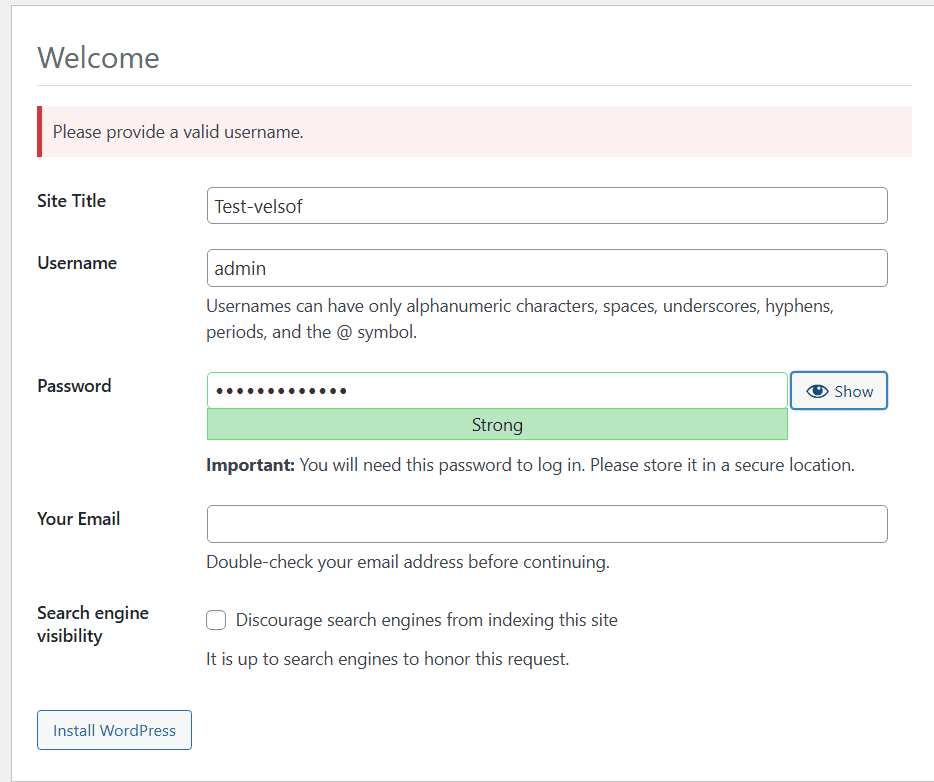
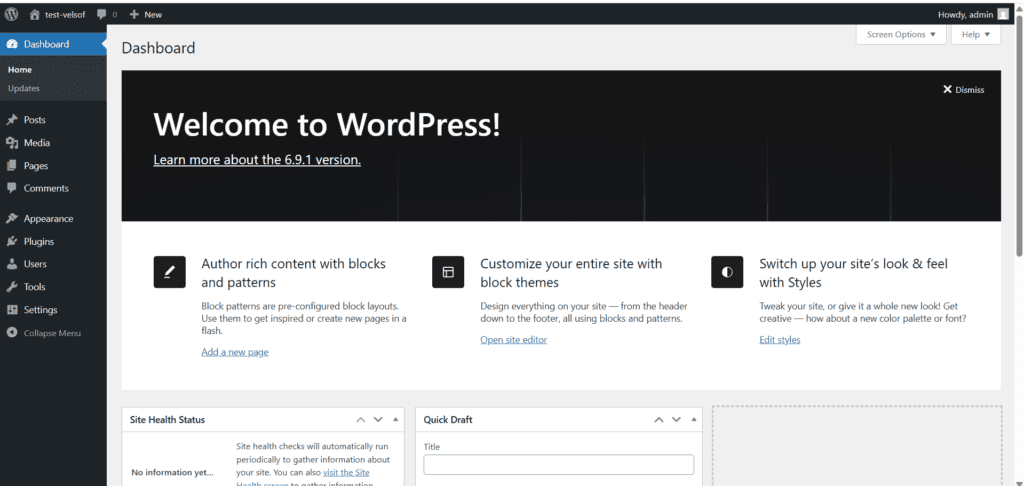
## Step 6: Complete WordPress Installation
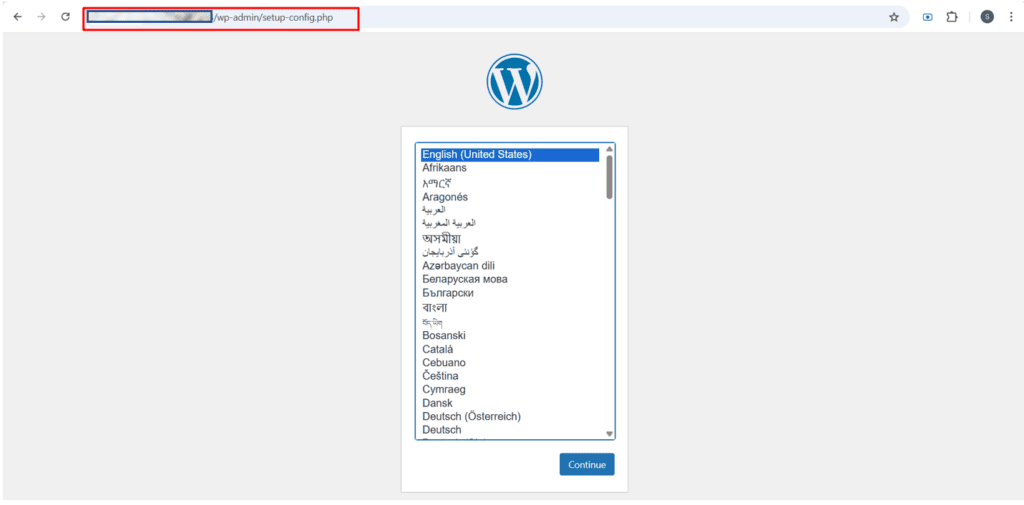
Open:
```
http://yourdomain.com
```
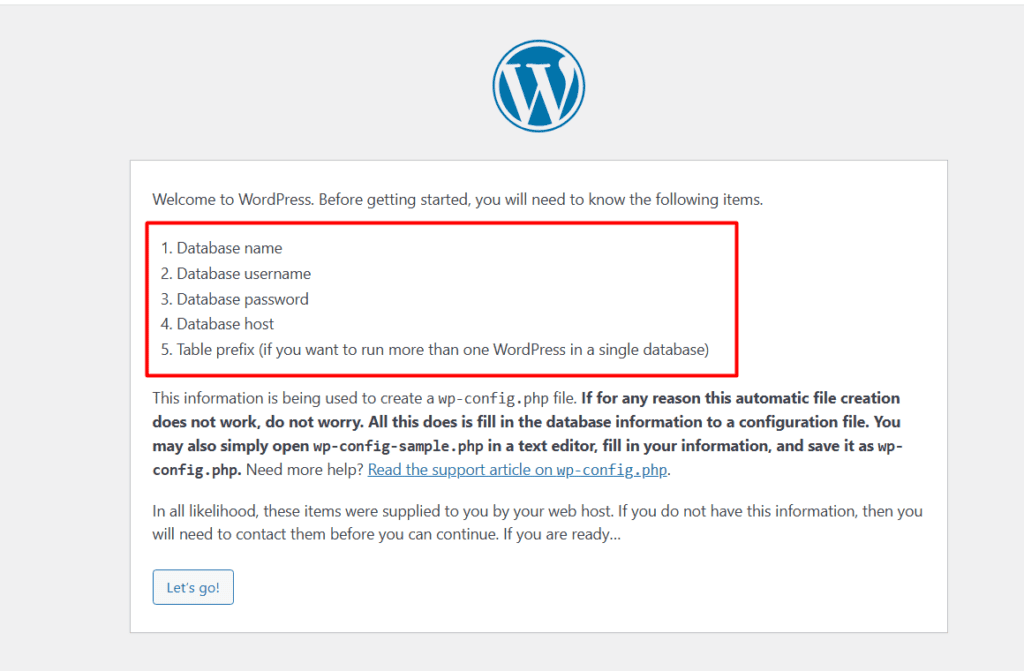
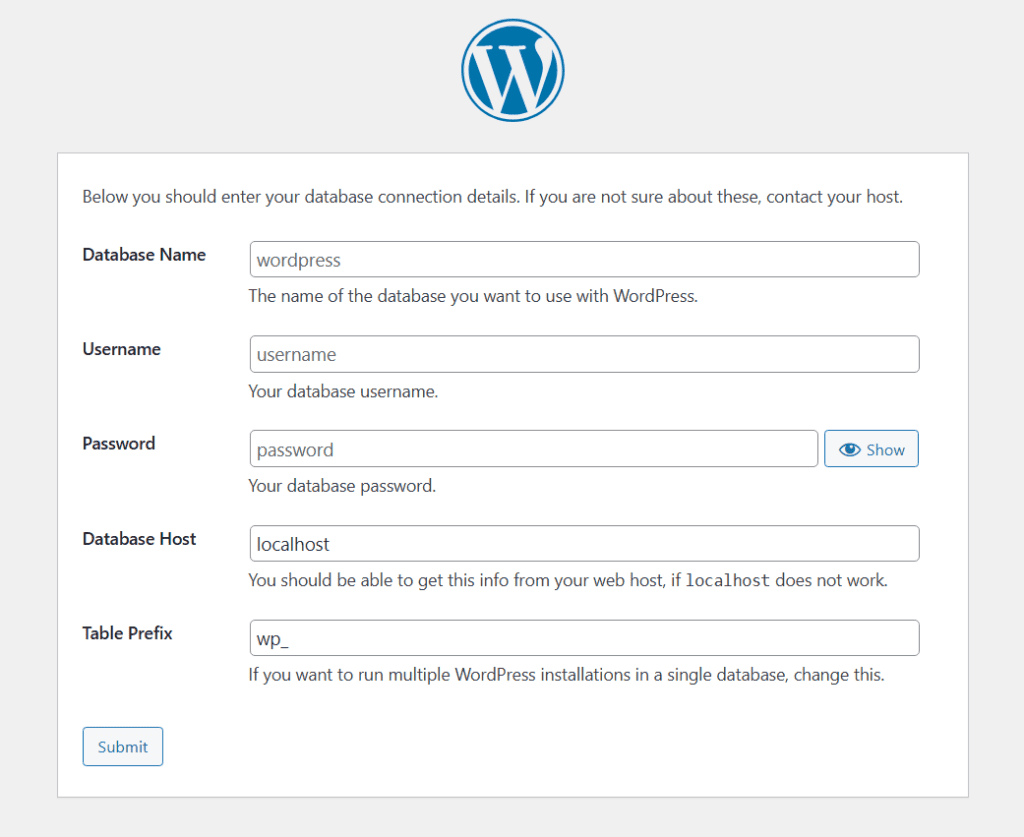
Enter database details:
- Database Name:
- Username:
- Password:
- Database Host:
Click **Install WordPress**.
## Issues and Troubleshooting Guide
During the installation or operation of WordPress on Ubuntu Server, some common issues may occur. Below are standard problems and their solutions.
### 1️⃣ Website Not Loading (Apache Not Running)
### Issue:
The website does not open in the browser.
### Possible Cause:
Apache service is stopped.
### Solution:
Check Apache status:
```
sudo systemctl status apache2
```
## 2️⃣ Database Connection Error
### Issue:
“Error Establishing a Database Connection”
### Possible Causes:
- Wrong database name
- Incorrect username/password
- MySQL service is not running
### Solution:
Check MySQL status:
```
sudo systemctl status mysql
```
```
sudo systemctl restart mysql
```
Verify database credentials inside:
```
/var/www/wordpress/wp-config.php
```
## 3️⃣ 500 Internal Server Error
### Issue:
Server shows 500 error.
### Possible Causes:
- Incorrect file permissions
- .htaccess issue
- mod_rewrite not enabled
### Solution:
Enable rewrite module:
```
sudo a2enmod rewrite
sudo systemctl restart apache2
```
Fix permissions:
```
sudo chown -R www-data:www-data /var/www/wordpress
sudo chmod -R 755 /var/www/wordpress
```
Check Apache logs:
```
sudo tail -f /var/log/apache2/error.log
```
## 4️⃣ CSS or JS Not Loading Properly
### Issue:
Website design appears broken.
### Possible Causes:
- Incorrect DocumentRoot
- Permission issues
- Mixed HTTP/HTTPS content
### Solution:
- Verify Apache virtual host configuration
- Ensure SSL redirect is correct
- Clear browser cache
## 5️⃣Permission Denied Errors
### Issue:
Unable to upload themes/plugins.
### Solution:
Set correct ownership:
```
sudo chown -R www-data:www-data /var/www/wordpress
```
## Conclusion
In this user manual, we have completed the installation and configuration of WordPress on an Ubuntu Server environment.
The setup included:
- Apache Web Server configuration
- MySQL database setup
- PHP installation and required extensions
- WordPress deployment
With this configuration, the website is now:
✔ SEO-ready
✔ Scalable and production-ready
✔ Easy to manage via WordPress dashboard
This deployment ensures a stable, high-performance, and cost-effective website solution suitable for business, blogging, or e-commerce purposes.
For long-term performance and security, it is recommended to:
- Keep Ubuntu packages updated
- Regularly update [WordPress theme](https://www.velsof.com/wordpress-development/)s and plugins
- Monitor server logs
- Perform periodic backups
- Use security and caching plugins
By following this guide, administrators can efficiently deploy and manage a WordPress website on Ubuntu Server with confidence.
### Related Services
[PHP Development](/php-development/)[WordPress Development](/wordpress-development/)